App Store and Google Play
App Store screenshots in the exact sizes you need
Drop in a screen from your app, pick a scene and export every size the stores ask for. scenly. renders on your own device, so your unreleased app never leaves your browser.
Every size, built in
The Export dialog has an App Store tab with 38 sizes. You tick the ones you need and get a single ZIP, or one image if you pick one size. Each size is rendered fresh at its exact pixel dimensions, nothing is scaled up from a preview.
Check App Store Connect and Google Play Console for the sizes your app needs. scenly. includes the sizes both stores list, so you do not have to look up pixel counts or resize by hand.
- iPhone: 14 sizes, from 3.5 inch up to 6.9 inch, portrait or landscape
- iPad: 8 sizes, from 9.7 inch up to 13 inch
- Mac: 4 sizes, 16:10
- Apple Watch: 6 sizes, from Series 1 to Ultra 3
- Apple TV and Vision: 2 sizes, 4K and HD
- Google Play: 4 sizes, phone, two tablet sizes and the 1024 by 500 feature graphic
From a plain screen to a store-ready image
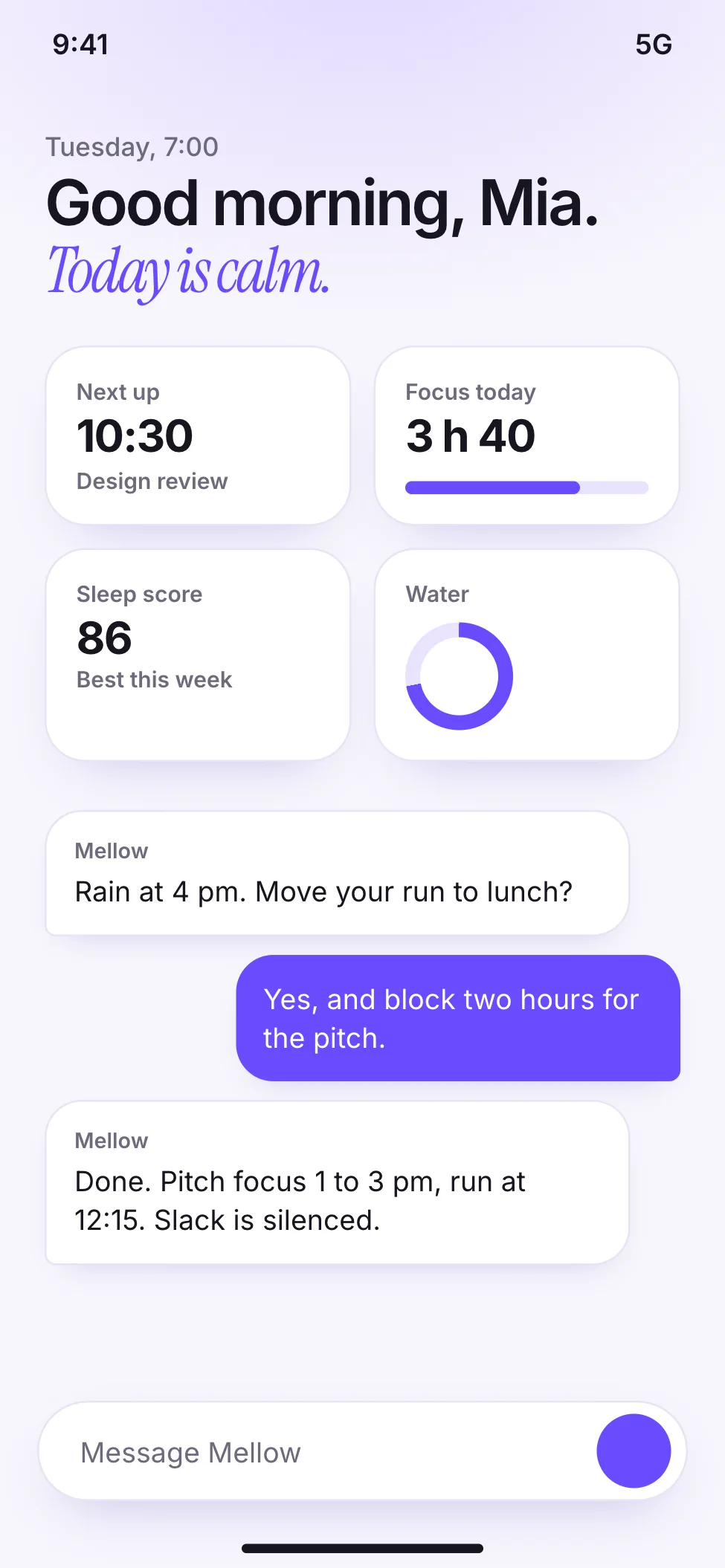
Pick a template from the App Store row, or start from any scene. Your screen is placed in a real device, on a background you choose. Add a headline above the device with the text tool and pick one of eight fonts.
There are 388 studio backgrounds, from glass and gradients to textures, plus your own colors and images. Save your brand colors once and use them in every scene.
A full set in five steps
Most listings need the same screens in several sizes. This is the quick way to get there.
- Take one screenshot per feature you want to show, from your simulator or your device.
- Drop the first screen into the studio and pick a template from the App Store row.
- Write a short headline above the device. Use the same background and fonts for the whole set.
- Replace the screen for each image, or duplicate the scene and swap the screenshot.
- Open Export, choose the App Store tab, tick your sizes and download the ZIP.
Devices that match your listing
The iPhone 17 line, the iPhone 16, 15 and 14 series, iPad Pro, Air and mini, MacBook, iMac and Apple Watch are all there, each in its real colors. For Google Play you can use the Pixel and Galaxy models.
Private by default
Your app is often unreleased when you make its screenshots. scenly. does not upload your screens. Projects are saved in your browser and stay on your computer.
Tips for screenshots that get taps
The first two or three images decide most of the story, because people rarely scroll further. Lead with the one thing your app does best, and keep each image to a single idea.
Short headlines read better than sentences. Five words at a large size beat twenty words at a small one. Show real screens, with believable data, rather than empty states.
- Use one style across the whole set so it looks like one product
- Keep important content away from the edges, some stores crop slightly
- Check every image at thumbnail size before you upload it
- Make one scene per language if you ship in several languages
What it does not do
scenly. makes the images. It does not submit them to App Store Connect or Google Play, you upload the ZIP yourself. It also does not translate your screens, so make one scene per language if you ship in several.
Questions
Which sizes does scenly. export for the App Store?
38 sizes across iPhone, iPad, Mac, Apple Watch, Apple TV and Vision, plus Google Play. You tick the sizes you need and download one ZIP.
Can I add a headline above the device?
Yes. Add text layers, up to ten per scene, in one of eight fonts, and place them anywhere on the image.
Do you upload my screenshots?
No. Rendering and export happen on your device, so your screens never leave your browser.
Is it free?
Right now, yes. Images are free with no watermark, up to 2x. The first 50 people in line become Pioneers and keep images free for good. After that, images cost $9 a month, and video is part of the $19 plan.
Does it work on my phone?
The studio runs in a desktop browser for now, on a laptop or a desktop computer. The mockups you export work everywhere, including on your phone.
More you can make
Join the waitlist and open the studio with your Google account.